
How to Set Up Business Hours, DND and Auto Text Reply
Use iPlum Business Hours to manage calls and text notifications outside your working schedule and to send automatic text replies when you are unavailable. These are two separate features with their own settings: Do Not Disturb (DND) and Auto Text Reply.
1. Do Not Disturb (DND) and Business Hours
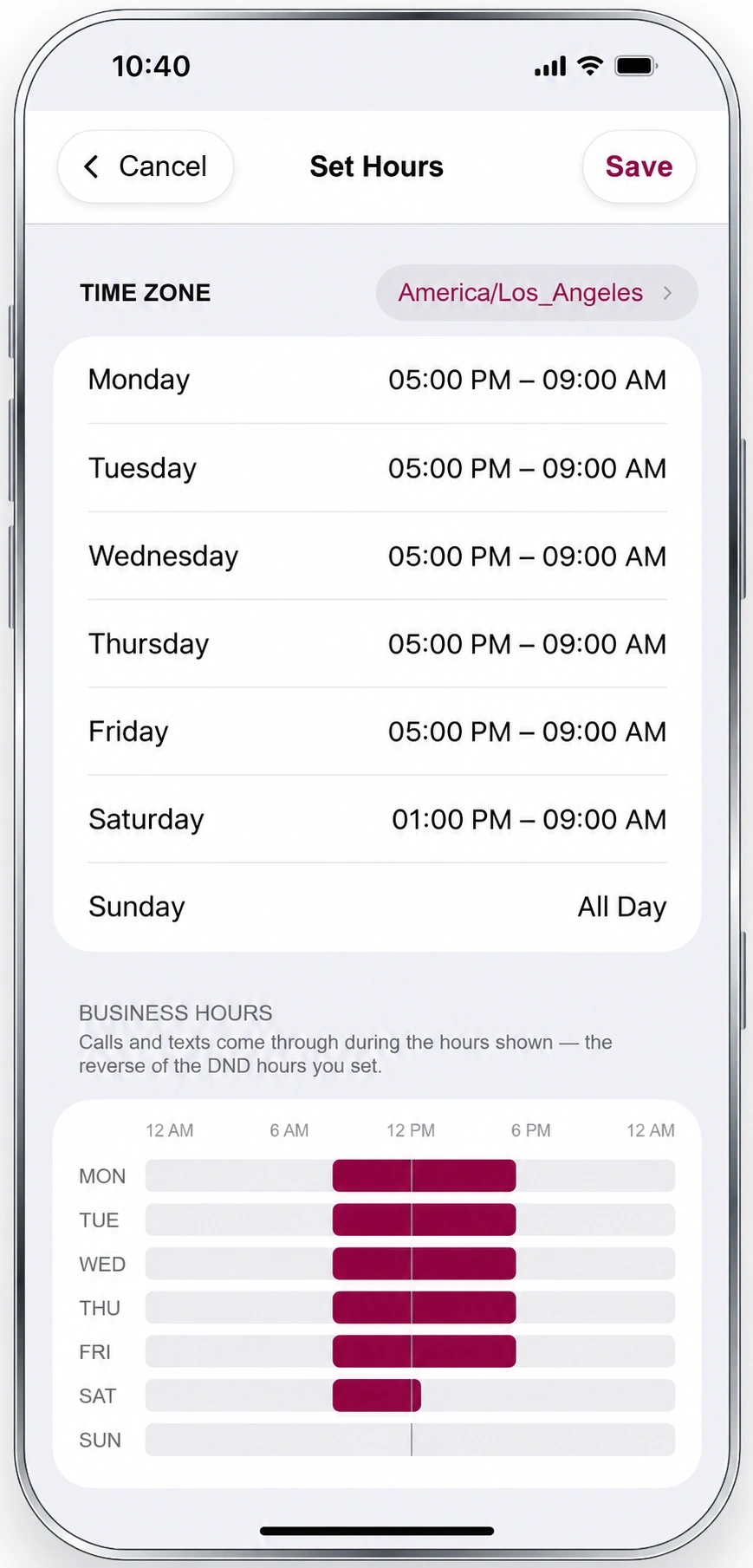
With DND, you can silence incoming calls and text alerts during selected hours. The updated scheduling screen now also displays Business Hours visually—the times when calls and text alerts are allowed through, based on the DND schedule you enter.
Set up DND in the iPlum app
- Go to Settings → Do Not Disturb / Business Hours.
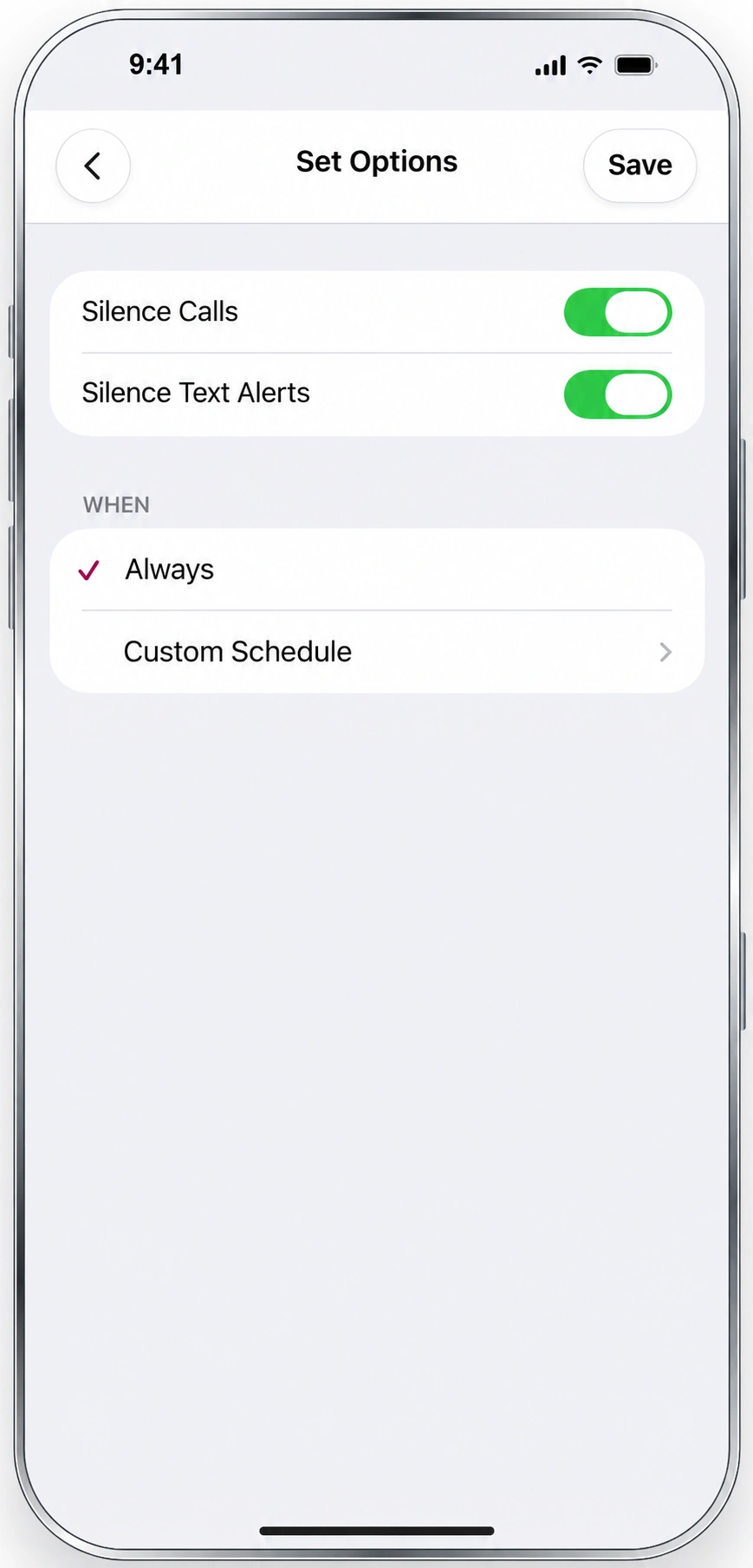
- In Set Options, turn on Silence Calls, Silence Text Alerts, or both.
- Under When, choose Always or Custom Schedule.
- For a custom schedule, select your time zone and set DND hours for each day. Tap Save.
Set up DND in the web portal
Sign in at my.iplum.com and go to Dashboard → Users → Select iPlum Login ID → Settings → Do Not Disturb / Business Hours → Edit. Choose the call and/or text options, configure your schedule, and save.
How DND Hours and Business Hours relate
DND Hours are your non-business hours. In the Set Hours screen, the Business Hours chart below the daily settings shows the opposite of your DND schedule. This makes it easy to check when calls and text alerts can come through.
Example: For business hours of Monday–Friday, 9 AM–5 PM, set DND hours from 5 PM to 9 AM on weekdays, and choose All Day on Saturday and Sunday. The chart displays the resulting business hours.
Silence Text Alerts silences the audible text and voicemail notifications; it does not stop messages from arriving. DND continues to work automatically in the cloud when your app is closed.
2. Auto Text Reply During Selected Hours
Auto Text Reply sends a preset text response when you cannot respond immediately. You can enable it for incoming text messages, missed calls, or both. Select the exact hours when replies should be sent; this schedule is separate from DND and Business Hours.
Set up Auto Text Reply in the iPlum app
- Open Settings → Text Options → Text Auto Reply.
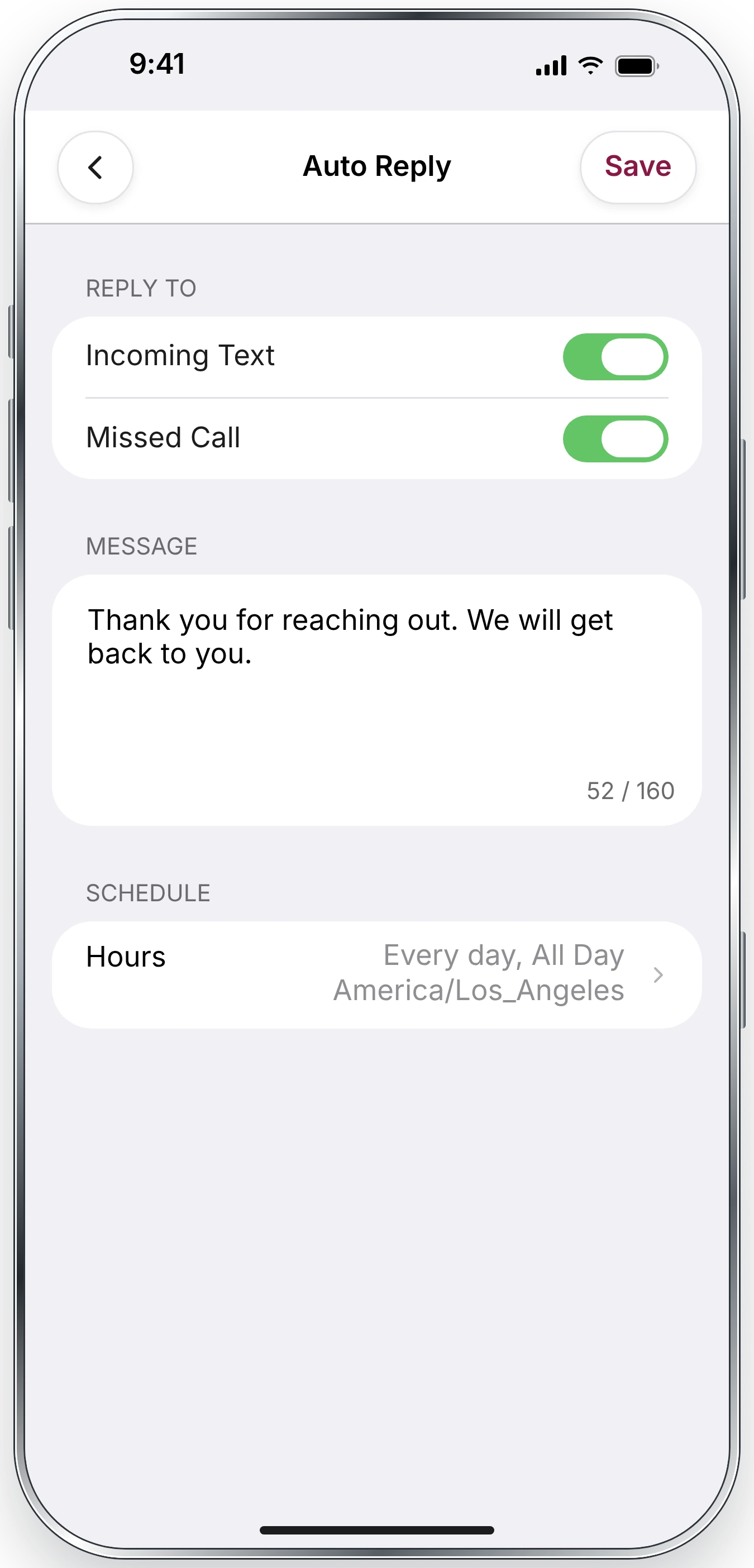
- Enable Incoming Text, Missed Call, or both under Reply To.
- Enter the message you want to send automatically.
- Open Hours to select when auto-replies should be active, then save your settings.
Set up Auto Text Reply in the web portal
Sign in at my.iplum.com and go to Dashboard → Users → Select iPlum Login ID → Settings → Text Options → Edit → Auto Reply. Choose the event types, message, and schedule, then save.
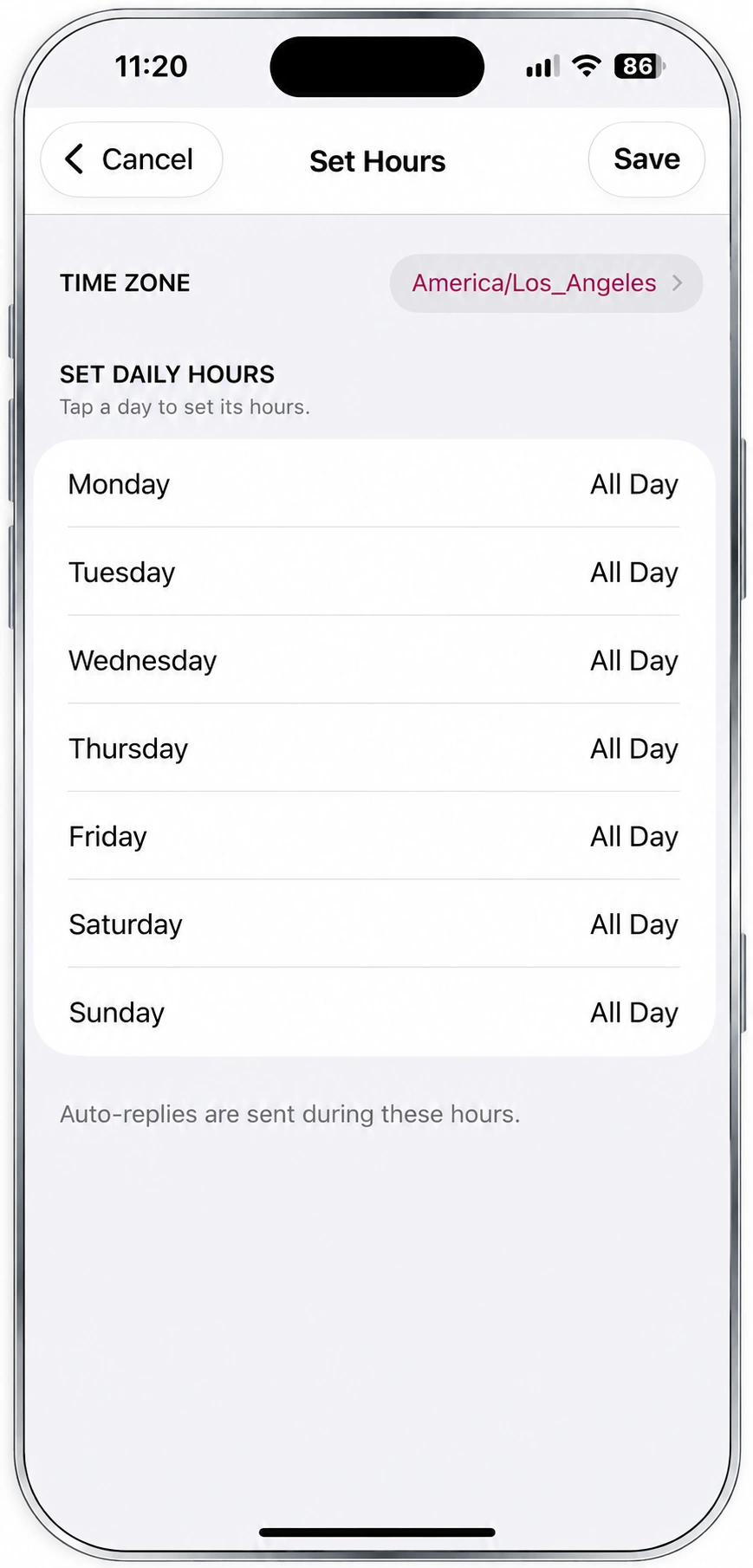
Set Auto Text Reply hours
Auto Text Reply uses its own schedule, independent of DND. Replies are sent during the hours you select in Auto Reply → Hours. These hours are not reversed and are not determined by your DND settings. For example, to send automatic replies from 5 PM to 9 AM on weekdays and throughout Saturday and Sunday, select those times directly in Auto Reply Hours.
Auto Text Reply is sent by the iPlum cloud service. Your phone and app do not have to remain open.
3. Frequently Asked Questions
Are DND and Auto Text Reply the same setting?
No. DND controls when calls and text alerts are silenced. Auto Text Reply controls when automatic reply messages are sent in response to selected incoming texts or missed calls. Configure each feature separately.
Does DND prevent incoming texts?
No. Incoming texts still arrive. With Silence Text Alerts enabled, the alerts are silenced during your configured DND period.
Can I silence notifications temporarily during a meeting?
Yes. In DND settings, temporarily select Always, then return to Custom Schedule afterward.
Can I schedule different hours for different days?
Yes. Use the custom hours scheduler to choose each day’s time range. The selected time zone is used to interpret your schedule.
Will these settings work if I close the app?
Yes. Both Do Not Disturb and Auto Text Reply are handled through iPlum’s cloud service after you save the settings.
Related Guides

